Zoom Integration Guide
Getting started
Sign in to your Zoom account
Visit zoom.us/signin and log in with your credentials. If you don't have a Zoom account yet, you'll need to create one first.
Note: Pique works with all Zoom account types, including free accounts. However, for the best experience, we recommend a Pro account or higher to avoid meeting time limits.
Connect Pique to your Zoom account
Pique uses a meeting copilot to join your meetings and provide real-time transcription during your calls:
- Log in to your Pique account
- Go to Settings > Zoom Integration
- Click on Connect next to the Zoom option
- You'll be redirected to Zoom to authorize the connection
- Review the permissions and click Authorize
- You'll be redirected back to Pique with a success message

Configure recording preferences
With Pique, you can choose which meetings should be automatically transcribed:
- In Pique, go to Settings > Zoom Integration
- Under Recording Preferences, choose between:
- Manual - You'll receive a prompt at the start of each meeting
- All meetings - Pique will automatically join and transcribe all your meetings
- Internal meetings - Only transcribe meetings with participants from your organization
- Save your preferences
Tip: The manual option gives you the most control over when transcription happens. You'll receive a notification when a meeting starts, allowing you to decide whether to transcribe that specific meeting.
Set up Google Calendar integration (optional)
For a seamless experience, connect your Google Calendar to see upcoming meetings in Pique:
- In Pique, go to Settings > Google Calendar
- Click Connect and authorize the connection
- Select which calendars you want to sync with Pique
- After connecting, you'll see your upcoming meetings in Pique
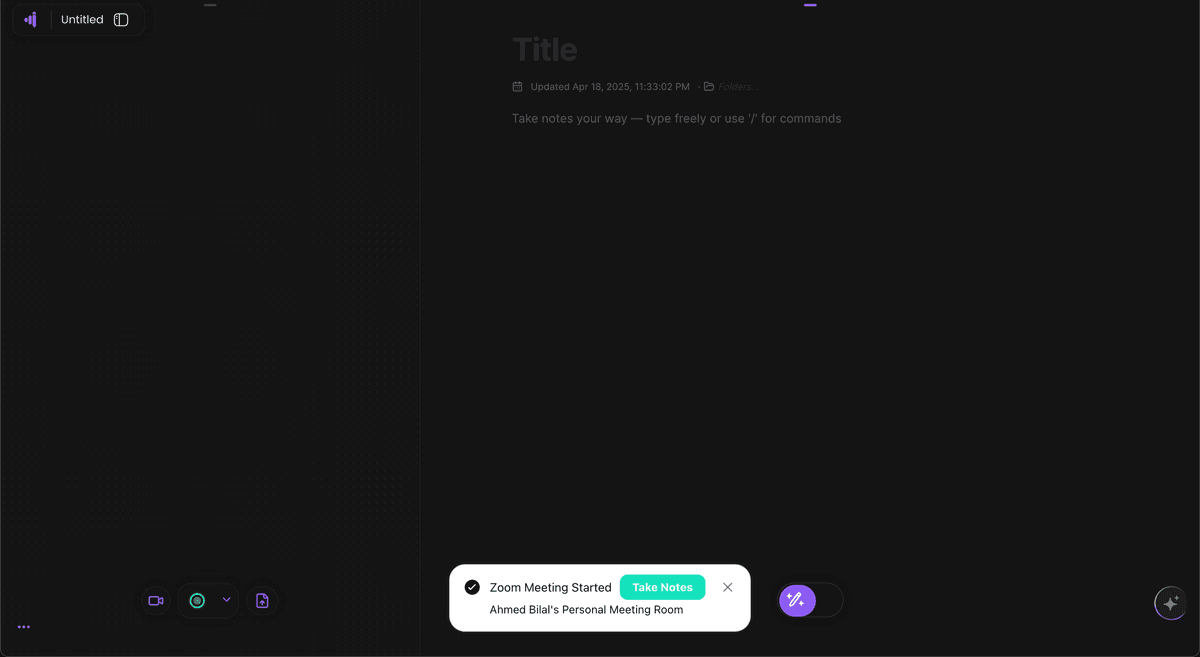
Using Pique during your meetings
Experience real-time transcription with Pique:
- When your meeting starts, you'll receive a notification (if using manual mode)
- Click Start Transcribing to begin
- The Pique Copilot will join your meeting automatically
- A new page will be created in your workspace with real-time transcription
- The transcript updates live with speaker identification and timestamps
- When the meeting ends, the transcript is saved and becomes searchable in your workspace
Troubleshooting Zoom Integration
Copilot not joining the meeting
If the Pique Copilot isn't joining your meeting:
- Check that your Zoom account is properly connected in Settings
- Verify you have the necessary permissions to add participants to meetings
- Make sure you didn't accidentally block the Copilot from joining
- Try disconnecting and reconnecting your Zoom integration
Transcription quality issues
For the best transcription quality:
- Ensure all participants have good audio quality and minimal background noise
- Ask participants to speak clearly and avoid speaking over each other
- Use headphones to prevent audio feedback
- Make sure your internet connection is stable
Connection issues
If you're having trouble connecting your Zoom account to Pique:
- Try disconnecting and reconnecting the integration
- Make sure you're using the correct Zoom account
- Check if your browser is blocking pop-ups
- Try using a different browser
Frequently Asked Questions
Does Pique work with free Zoom accounts?
Yes, Pique works with all Zoom account types, including free accounts. However, free Zoom accounts have limitations on meeting duration that may affect your experience with Pique's real-time transcription.
How quickly does Pique transcribe my meetings?
Pique transcribes your meetings in real-time. As soon as the Pique Copilot joins your meeting, transcription begins immediately and updates live as people speak. There's no waiting period after the meeting ends.
What languages does Pique support for transcription?
Currently, Pique supports English for transcription. We're working on adding support for additional languages in future updates.
Can I use Pique with other video conferencing platforms?
Currently, Pique is optimized for Zoom integration. We're working on adding support for other platforms like Microsoft Teams, Google Meet, and Webex in the future.
How does the Pique Copilot join my meetings?
When transcription is initiated (either automatically or manually), the Pique Copilot joins your meeting as a participant. It appears in your participant list with the Pique logo. The Copilot only listens to the audio to create the transcription and doesn't record video or share its screen.
What happens when my meeting ends?
When your meeting ends, the transcription is automatically saved to your Pique workspace. It becomes immediately available for searching, reviewing, and sharing with your team. You can access it at any time from your meeting history.
Do I need to record my Zoom meetings for Pique to work?
No, you don't need to manually enable Zoom's cloud recording feature. The Pique Copilot does record the meeting audio when it joins, but this is solely for the purpose of real-time transcription. This process is separate from Zoom's built-in recording functionality, so you don't need to worry about Zoom recording storage limits.
Is my meeting data secure?
Yes, Pique takes data security very seriously. While the Pique Copilot records the audio to create transcriptions, we do not store the audio data on our servers. Only the text transcription is saved to your workspace. We use industry-standard encryption and security practices to protect your data, and we never share your information with third parties. All transcriptions are stored securely in your private workspace, giving you complete control over your meeting content.
What happens if I disconnect my Zoom account?
If you disconnect your Zoom account from Pique, the Pique Copilot will no longer be able to join your meetings for transcription. However, any previously transcribed meetings will remain in your Pique account unless you explicitly delete them.
Need More Help?
If you have any questions or need assistance with your Zoom integration, our support team is here to help.